Contents(6)
You ask yourself, How to go live on TikTok and above all: what do you need for it? Don't worry - in this article, you'll learn step by step how to use the Live function of the popular social media app TikTok (some also write "Tik Tok") and use them. Whether you're just starting out or already posting videos: With our tips, your first Live stream to success. We take a look, from how many followers you can go live, how to start a livestream in the TikTok app and even how the whole thing works on the PC works. So, grab your smartphone and let's get started - Your live broadcast is already waiting! 😉
From how many followers can you go live on TikTok?
Before you can go live on TikTok, you need to complete a few Prerequisites fulfill. TikTok does not allow live streaming for every account right from the start. Here are the most important points you need to know:
- Minimum number of followers: You need at least 1,000 followersto activate the live function support.tiktok.com. This means that if you are new to TikTok or only have a few hundred followers, you need to build up a larger following first. (This threshold can vary from region to region, but in most cases it's 1000).
- Minimum age: You must also be of legal age. TikTok uses Minimum age of 18 years to be allowed to go live. (The limit used to be 16, but it has since been raised to 18). If you are under 18, unfortunately you can't stream live yourself yet.
- Community rules: Your account should comply with the TikTok guidelines. If you violate the Community guidelines or if your account is restricted, you may also not be able to go live. So make sure you follow TikTok's rules so that nothing stands in the way of your live stream.
Why these limits? TikTok wants to ensure that live videos are a positive experience for everyone. The limit of 1000 followers ensures that users build up some experience and reach an audience before streaming live. And the age limit ensures that mature people use the live platform, as Lives interact directly and in real time.
Tip: If you cannot find the live function in your app, it is probably because you do not yet meet the above requirements. Don't let this discourage you! Concentrate on it, your first 1000 followers post good content regularly, interact with your community and stay tuned. Soon you will have broken the magic barrier and the live option will automatically appear in your TikTok app.
Step-by-step guide: How to go live on TikTok
Have you met the requirements? Great! 🎉 Then you can get started now and start your first TikTok livestream. Fortunately, the process is Very simple. Follow this Step-by-step instructionsto go live on TikTok:
- Open the TikTok app: Open the TikTok app on your smartphone and log in to your account if you are not already logged in.
- Tap the "+" button: Tap at the bottom center on the Plus symbol (+). This is the button that you normally use to record new videos.
- Switch to LIVE mode: You are now in the camera's recording mode. Swipe at the bottom of the menu bar to the leftuntil you reach the option "LIVE" or tap directly on "LIVE". (The option only appears if your account is live-authorized).
- Prepare livestream: Before you go live, you can make a few settings:
- Set title: Give your live stream an interesting title. This will be visible to viewers and should arouse their curiosity. Keep it short and easy to understand, e.g. "Q&A and new dance challenge".
- Select cover image: You can use a Cover picture for your stream (for example, a frame from your camera or a prepared image). This is the image that other users see before they click in.
- Use filters/effects: Just like with normal TikTok videos, you can Filters or effects add. If it suits your stream (e.g. a funny effect), try it out - but don't overdo it so that you remain recognizable 😉.
- Check settings: Below you can find more LIVE tools to set. For example, you can specify whether comments are allowed, whether you want to invite a co-host, or select a charity to donate to. Take a quick look at these options and adjust them as required.
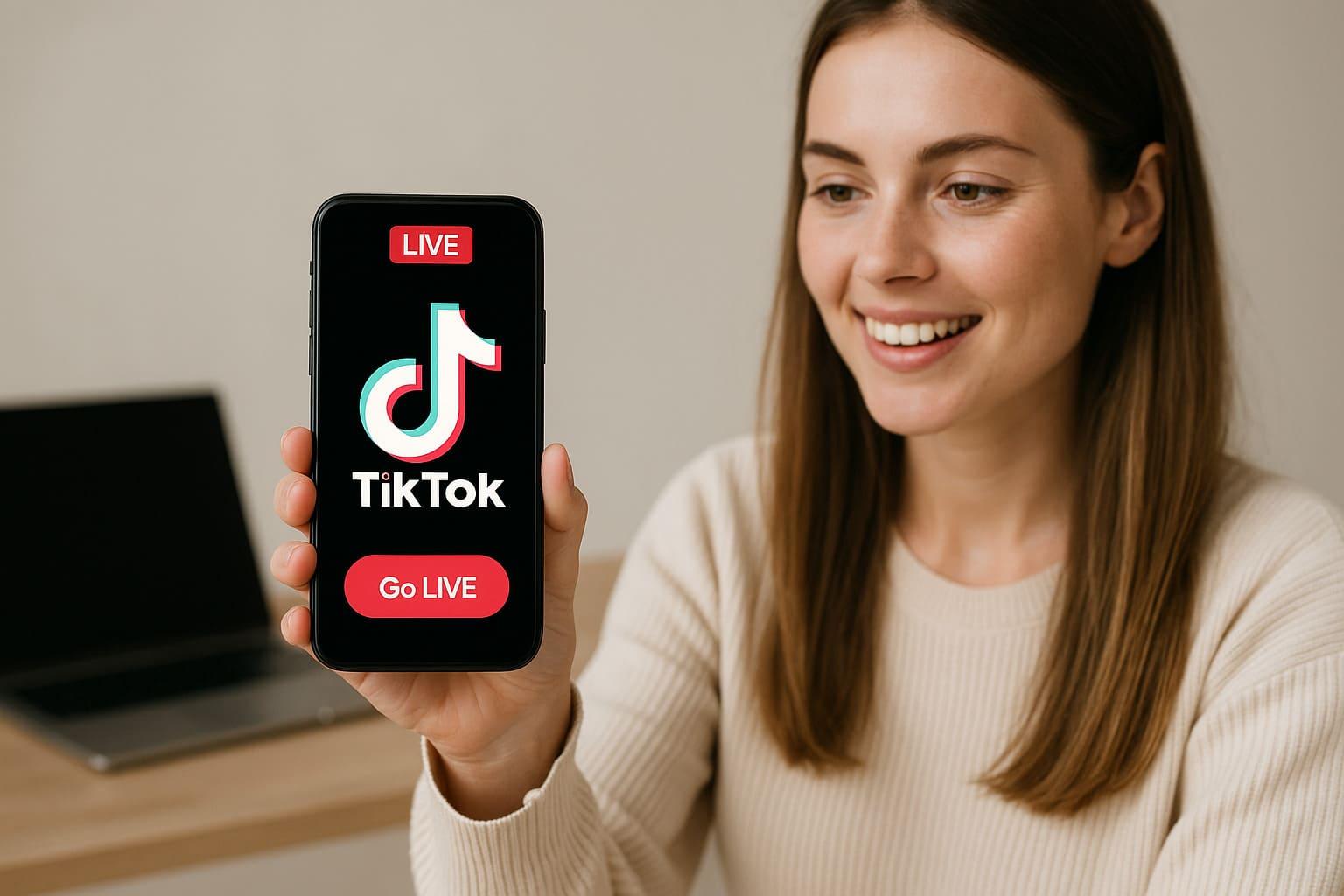
- Press "Go LIVE": Ready to get started? Then press the button "Go LIVE" (or "Go LIVE") - and you're live on air! TikTok counts down a short countdown and then connects you to your viewers in real time. Now it's time: Smile! 😃 You are live.
While you are live, you will see the number of viewers at the top left and the current viewers at the bottom. Chats/Comments of your viewers. You can react to them by answering them out loud or responding to them in the stream. If someone gets into mischief in the chat, you can appoint a moderator or hide unwanted comments. TikTok offers small moderation tools for this during the stream.
Important: Pay attention to this, not to get nervousif perhaps only a few people are watching at the beginning. That is completely normal! Give a friendly welcome to those who are there - for example: "Hi @username, welcome to my Live!" - and just get started. The longer you are live and the more interesting your stream, the more people might gradually join (TikTok shows your followers that you are live).
If you want to end your live stream, tap in the top right-hand corner on "X" or the Exit buttonthen click on "Finish now". Congratulations, you have successfully completed your first TikTok Live! 🎉 The live session is not saved automatically, but TikTok sometimes offers you to save a Recording (Replay) to download or share if you wish.
Tips for your first TikTok livestream
Now that you know, like you go live on TikTok, here are a few more Tips and tricksso that your live stream is magical (and you feel more comfortable):
- Plan your live beforehand: Think about what you want to do or say in your live stream in advance. Just talking spontaneously can also work, but you'll feel more confident with a rough plan. For example: Do you want to answer questions (Q&A)? Discuss a specific topic? Demonstrate something (dance, recipe, play a game)? Make a note of key points. This will help you avoid awkward pauses and keep things interesting.
- Ensure good lighting and sound: The quality of your stream doesn't have to be ultra-professional, but a few basics will help enormously. Position yourself at a well-lit place (daylight or a ring light lamp) so that you can be seen clearly. Also check your Sound - preferably not in a noisy environment with a lot of background noise. Many viewers will drop out if the picture or sound is poor. A quiet room with sufficient light is perfect.
- Stable Internet connection: Nothing is more annoying than a live stream that constantly freezes or breaks off. Make sure you have a good WLAN connection (or at least stable mobile internet, ideally 4G/LTE or 5G). If your Wi-Fi is weak, move closer to the router or find a place with better reception. A smooth stream keeps viewers entertained.
- Interact with your viewers: The biggest advantage of TikTok LIVE is the direct interaction. Greet new viewers, answer questions in the chat and feel free to address people by name. For example: "Oh, @Lisa is just asking what song is playing in the background - that's ..." - Such moments make your live more personal. The audience realizes that you are aware of them and feels included. This makes them more likely to stay in the stream and perhaps come back next time.
- Hold out a little but don't be too long: Going live can be intimidating at first. Don't put pressure on yourself to have hundreds of viewers. Even if only 5 people are watching - imagine you're chatting with 5 friends 🙂 Try to stay live for at least a few minutes (so people have a chance to get in at all). But also don't artificially drag it out forever if nothing else happens. A length of 20-30 minutes is perfectly okay for the first stream - long enough to warm up, but short enough that nobody gets bored. You'll get a feel for it over time.
- Stay yourself and have fun: Authenticity goes down well. Don't even try to be someone else or try to do everything perfectly. Slips of the tongue or small mishaps are human and happen to everyone - take it with humor. Laugh, be relaxed and show your personality. Audiences love real people more than perfectly scripted robots. If you have fun with your own live performance, your audience will do the same!
Story Tip: Imagine you go live and there's hardly anyone there at first. That can be daunting at first. But instead of quitting, tell what you wanted to tell anyway, as if you were talking to a friend. I once experienced how a creator continued to talk with full commitment despite only 2 people in the audience - and suddenly more and more people came in because they could feel the energy. In the end, he had over 50 people in the audience and everyone loved how positive he remained. 😊 The moral: Even if few people are watching at the beginning, keep at it and do your thing. It can pick up speed at any time!
- Don't forget the promo: If you already have a few followers, feel free to announce in advancethat you will be going live. For example, in your bio ("Going live on Friday at 6pm!") or in a TikTok video on the same day. That way, your fans know and can plan for it. And if you have other social media channels (Instagram, YouTube, etc.), you can also briefly say there that you will be live on TikTok. This will maximize your potential audience.
- Optional: Invite a friend: TikTok also offers the option of going live together with someone else (keyword Multi-guest LIVE). If you know someone who is also allowed to go live, you can team up. This takes some of the pressure off you alone, is often even more fun and you can "share" your audience with each other. For the audience, a dynamic duo is sometimes more exciting than just one person.
With these tips, you are well equipped to make your first TikTok live stream not only to startbut also to make it successful and enjoyable. As with everything, practice makes perfect. The more often you go live, the more relaxed you will become.
TikTok LIVE on PC: How it works
Many users ask themselves: How can I go live on TikTok on PC? - So how can you start a TikTok livestream from your computer instead of your cell phone? Gamers or people who want to do a more professional stream with a camera and microphone are particularly interested in this. The good news is that goesbut there are a few special features.
TikTok Live Studio - the streaming software from TikTok
For the Going live on the PC TikTok has developed its own software called TikTok LIVE Studio developed. You can officially download it from the TikTok website. It works so far only on Windows PCs (Windows 10 or newer). TikTok Live Studio allows you to broadcast your screen, webcam, games, etc. live to TikTok, similar to other streaming programs (e.g. OBS or Twitch Studio). The software also shows you the chat, allows you to display alerts (e.g. when someone follows you or sends you gifts) and other useful tools to create a professional stream from the computer.
How to use TikTok Live on your PC:
- Download & Installation: Charge TikTok Live Studio from the official TikTok website and install it on your computer. (In the TikTok app, you will usually find a reference to "Download LIVE Studio" in the profile menu - this will also take you to the download).
- Log in: Start the software and log in with your TikTok account to. Important: Your account must be already live-capable (i.e. fulfill the above-mentioned requirements), otherwise you will be able to log in but will not be allowed to start a stream.
- Configure the setup: Similar to other streaming tools, you then set up your Source on. For example, you can choose whether you want to stream your entire screen (for gaming or presentations), a specific window, or simply your webcam. Add your Audio sources (microphone for your voice, system audio if you want to share sound from your PC). TikTok Live Studio guides you step-by-step through the setup.
- Enter stream information: Give your live stream a title, select a category if necessary (e.g. the game for gaming) and add a preview image if desired.
- Go live from the PC: Click on "Go live" (or similar start button in the software). Now you are live on TikTok, directly from your PC! Your followers will see your stream as if you were broadcasting from your cell phone, only now you might be broadcasting yourself. and your gameplay or your presentation.
Important note: TikTok is gradually rolling out this PC live stream function. Initially, TikTok Live Studio was available to many creators with 1,000 followers or more, specifically to enable gaming streams. In the meantime, there are reports that some accounts may have 10,000 followers to get live access on the PC. TikTok has probably adjusted the guidelines a little here and differentiates between normal Lives and gaming creators. So if you 1000 followers and can go live on mobile, but still don't have streaming authorization in Live Studio, it could be because your account is not (yet) activated for PC streaming. This can be frustrating - but don't worry: you can of course still go live via the mobile app and continue to grow your audience.
Tip: There is a small detour for ambitious streamers: TikTok has an application form for live access. Some creators have been able to gain access to TikTok Live Studio through this, even without the huge number of followers. Find out more at TikTok Creator portal or help center to see if there is currently such a program. This is often aimed at people who are already streaming on other platforms (e.g. Twitch) and now want to go live on TikTok.
To summarize: Yes, you can go live on TikTok on the PCbut it requires the official software and (in most cases) an already activated account with enough followers. For casual sessions or beginners, it's often easier to start with mobile. However, if you plan to stream regularly and professionally - such as gaming or music performances - then TikTok Live Studio on PC is a great option once you have access to it.
Frequently asked questions about TikTok LIVE (FAQ)
From how many followers can you go live on TikTok?
As a rule, you need at least 1,000 followersto be allowed to go live on TikTok. This limit applies worldwide, but may vary slightly depending on the region. Important: If your follower count later falls below 1000, you may lose the live function again until you reach the mark again.
Can I go live on TikTok without having 1000 followers?
Official no - TikTok has set the 1000-follower limit as a guideline. There have been occasional reports that TikTok has granted live access to users with fewer followers (e.g. ~500) on a trial basis, but you should not rely on this. If you have under 1000 followers, focus on growing organically. There isn't really a "trick" to get around the limit (beware of dubious hacks or offers - these may violate TikTok's guidelines). Alternatively, you can try applying for LIVE via TikTok's official form if you already have streaming experience on other platforms, for example - but there's no guarantee.
Why don't I have a live function even though I have 1000 followers?
If you have reached the magic limit and still have the "Live" button does not appear, there may be the following reasons: Firstly, are you under 18 years - then Live remains blocked despite having enough followers. Secondly, there could be a technical error Make sure that your TikTok app is up to date. Sometimes it helps to log out and log back in once. Third, check if your account is protected against any Guidelines (violations can restrict certain functions). In rare cases, TikTok also rolls out new features in waves - this means that even with 1000 followers, activation could be delayed by a few days. So be patient and contact TikTok support if the problem persists.
How can I go live on TikTok with someone else?
TikTok offers a function called "Multi-Guest-Live"with which you can bring other creators into your livestream. You can either start a live stream yourself and invite someone (there is a button for this in the live view, usually represented by two smileys 😊), or you can kick join a friend's live if you agree this in advance. Both participants must of course be live-authorized (1000+ followers and 18+). Going live together can be really fun - you can do a joint Q&A or just chat together, for example. The viewers will then see the screen shared with both streamers. Remember to invite someone you trust and who will stick to the rules, because everything they say or do will also affect your stream.
Does it cost anything to go live on TikTok?
Nothe going live itself is complete free of charge. Neither starting a livestream nor watching it costs money. All you need is the TikTok app and an account that fulfills the live function. However, there is the option on TikTok, virtual gifts to send or receive a gift during a Live. If you want to send a gift to a creator as a viewer, you would have to buy TikTok coins first (for real money). But this is completely optional. As a creator, you can receive such gifts from viewers, which will then be converted into a kind of tip (diamonds that can be converted into real money) for you. However, TikTok requires you to be 18+ and meet certain criteria (e.g. 1000 followers, regular content). Bottom line: Livestreaming is free of chargeadditional monetization or support functions are voluntary.
Conclusion: TikTok LIVE - let's get started!
To go live on TikTok, you need an account of legal age with at least 1000 followers - if you meet these requirements, you can start your own livestream at any time using the "+" symbol and the LIVE tab. The TikTok Live function is a fantastic option, reach your followers in real time and interact with them. In this article, we have clarified the most important questions: from the requirements (1000 followers & 18 years) to step-by-step instructions in the app and helpful tips for your first stream. Remember that getting started can take a little effort - but the more often you go live, the easier it will be.
TikTok LIVE offers a new stage for your creativity: Use them! Whether you're reporting spontaneously from your everyday life, showcasing a talent or simply chatting with the community - going live can strengthen your bond with viewers and is also a lot of fun. Also the option, stream from the PCTikTok Live Studio is available to you as soon as your account is activated, and more and more creators will be using it in the future.
Now it's your turn: Start your first livestream and don't be afraid of small mishaps - just be yourself. With our tips in mind, you'll be well prepared. So, good luck and, above all, have fun with your next (or first) TikTok LIVE! 🚀👏
Bigfollow
Social media team
BigFollow is the social media shop of PortalWeb GmbH in Altdorf, Switzerland. Since 2022 we have delivered followers, likes and views with a focus on quality so that profiles really grow. Our social media team writes the guides and tutorials on the blog.
Learn more about Bigfollow