
How to go live on YouTube - simple step-by-step instructions
How to go live on YouTube - simple step-by-step instructions
Contents12
- Why live streams on YouTube make sense
- Requirements: What you need before your first stream
- Go live on PC/laptop (webcam)
- Go live on your smartphone (Android/iPhone)
- Go live with encoder (OBS, Streamlabs, Ecamm, etc.)
- Quality & stability: the most important parameters
- Visibility, title & thumbnail: How to be found
- Interaction, moderation & security
- Typical mistakes - and how to solve them quickly
- Practical example: Your first Monday stream
- FAQ - short & helpful
- Conclusion - the fastest way to your first live
Why live streams on YouTube make sense
Do you want to talk to your community in real time, answer questions or broadcast an event? Then YouTube Live is perfect. In this guide, I'll show you how, how to go live on YouTube - on a cell phone, on a PC with a webcam and with encoder software. You will also find out which requirements apply (verification, waiting time, account status) and how to avoid typical mistakes. The focus keyword „how to go live on youtube“ appears right at the beginning so that you know exactly what it's about.
Requirements: What you need before your first stream
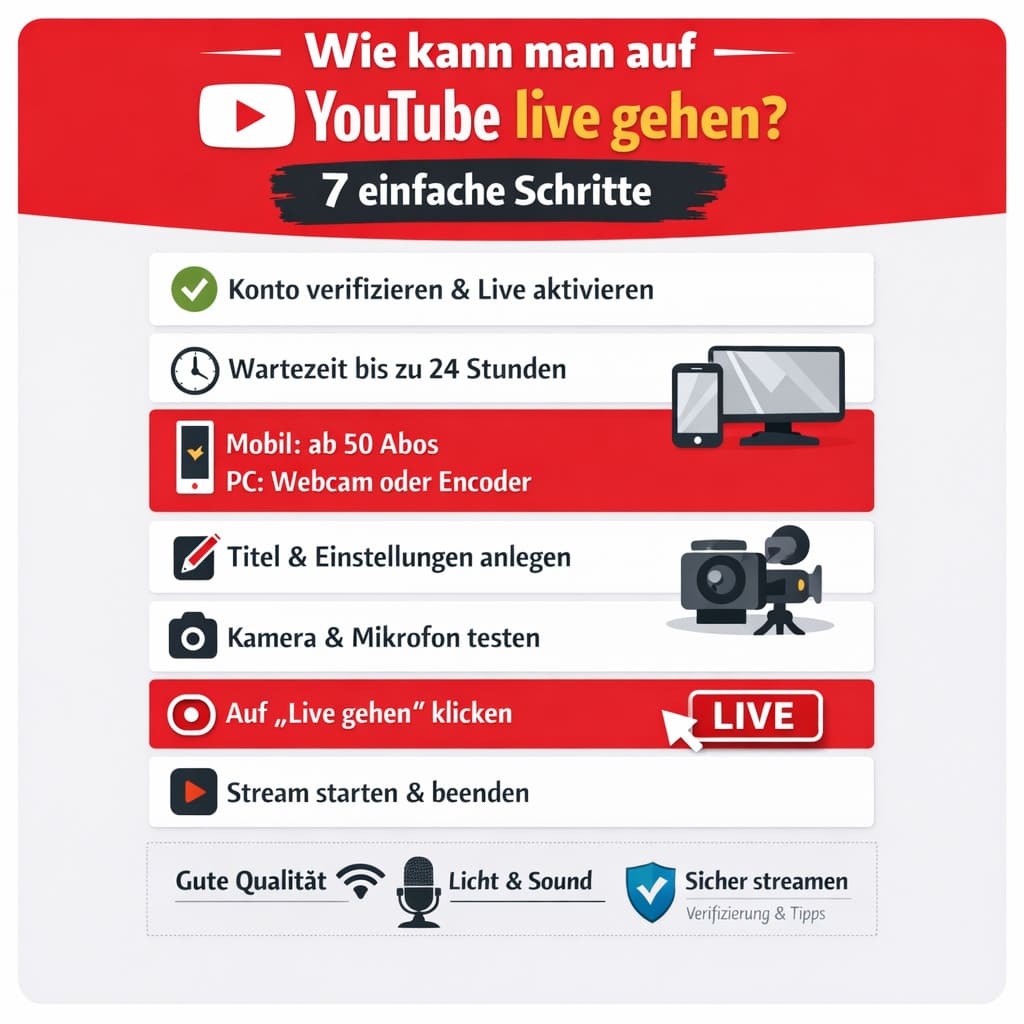
Before you start, you should check your account Verify by phone number, Live streaming activate and make sure that your Policy history clean (no active locks). After activation, it can up to 24 hours until you are allowed to go live for the first time - this is normal and is intended by the system. You can find the official instructions in the YouTube Help Center (section „Live stream on YouTube“). There you will also find details on age, privacy, webcam and encoder streams.
If you on the smartphone want to go live, additional conditions apply: Your channel needs at least 50 subscribers, in the last 90 days No live restrictions have received, and the Channel verification must be completed. The following also applies here: The first activation can take up to 24 hours take. YouTube states these requirements on the „Create a live stream on mobile“ page.
In short
- Activate Live → wait up to 24 hours if necessary.
- Verify account, no active strikes.
- Mobile: from 50 subscriptions; desktop/webcam/encoder without subscription limit, but also with verification.
Go live on PC/laptop (webcam)
The quickest way is the Webcam option directly in the browser. All you need is a laptop/PC with a camera and microphone:
- Log in to YouTube and open Create → Go live.
- Enter the title, description, visibility (public, unlisted, private) and, if applicable, the target area „For children“.
- Select „Webcam“. Check the camera/micro in the preview and adjust the audio volume so that it does not clip into the red area.
- Start the stream. Finally, click on „End stream“ and YouTube saves a recording (optional).
Tip: Set up a neutral Thumbnail and activate a Delay (latency), if you want to chat particularly interactively (low latency) or if a more stable quality is more important to you (normal latency).
Go live on your smartphone (Android/iPhone)
If your channel meets the mobile requirements, the process is very simple: Open the app, „+“ → Live select, enter the title and start. Why do many creators still fail? Push permissions are often blocked, the app is out of date or the 24-hour period has not yet expired. So check:
- Updated app and stable WLAN or sufficient mobile data.
- Portrait format for Q&A/everyday life, Landscape format for gaming and scenes with text/slides.
- Do not disturb on your cell phone so that no calls interrupt the stream.
Official minimum requirements and information (50 subscriptions, verification, waiting time) can be found here: YouTube help for mobile live streams.
Go live with encoder (OBS, Streamlabs, Ecamm, etc.)
For screen sharing, multi-camera setups or overlays, you use a Encoder software (e.g. OBS Studio). The process:
- In YouTube Create new stream, Set title/privacy, Stream key and Server URL copy.
- In OBS Source (window, screen, camera), Audio level, Bit rate to match the upload line (e.g. 4500-6000 kbps for 1080p30).
- Insert stream key and „Start streaming“ press.
Encoder streams are ideal for Gaming, Tutorials and Events with several scenes. Allow 10-15 minutes of setup time to test the sound, scenes and transitions.
Quality & stability: the most important parameters
A good live experience means clean sound before picture. An inexpensive lavalier microphone usually delivers more than an expensive camera with reverb. For stable quality:
- LightSoft, frontal light (window, softbox) immediately creates a professional impression.
- NetworkIf possible LAN cable on a laptop; on a cell phone 5 GHz WLAN change.
- Bit rateAdjust it to your upload speed (as a rule of thumb, do not use more than 70 % of the measured upload rate).
- Backup plan: Hold a second device with the stream logged in and ready in case something goes wrong.
Visibility, title & thumbnail: How to be found
Live videos also need good metadata. Use search terms that viewers actually type in („live Q&A on topic X“, „cooking livestream Monday 8pm“). A clear thumbnail with a few words („Live: Questions & Answers“) works better than colorful stickers. Direct the Live chat so that new viewers can quickly see what it's all about: welcome sentence, short agenda, call-to-action („Questions in the chat“).
Interaction, moderation & security
Lives are strong when you react in real time. Build short Check-Ins („Are you ready? Give me a ‚yes‘ in the chat“), pin important notes to the top and use Moderators. The following applies to trolls: Timeouts and, if necessary, Lock. You can open the chat on „Subscribers only“ or the Slow mode function to reduce spam. Information on community guidelines and restrictions is summarized in the YouTube Help Center.
Typical mistakes - and how to solve them quickly
„I can't find the live button“Check whether Live activated at all and whether the 24-hour deadline around.
„I'm not allowed to use mobile live“: Under 50 subscriptions, mobile live creation is not available; above 50, restrictions (e.g. limited audience) are possible.
„The quality is collapsing“: Bit rate down, resolution up 720p set, test another WLAN/hotspot, stop background uploads.
„Audio is asynchronous“: In OBS under Advanced → Audio delay adjust; restart browser for webcam streams.
Practical example: Your first Monday stream
Assuming you plan every Monday a 30-minute „Ask me anything“ at 7 pm. So you can get started:
- FridayCreate stream, Thumbnail upload, Description with themes & timestamps.
- Monday 18:30Technical check (sound, light, internet), note down two questions to warm up.
- 19:00Welcome, agenda in 20 seconds, answer first question, actively involve chat („Tell me where you're watching from“).
- 19:28Summary in 60 seconds, announce next topic, Subscription call-to-action.
This way you train routines, strengthen the community and improve small details every week.
FAQ - short & helpful
How can you go live on YouTube if the button is missing?
Live is probably not yet activated or the 24-hour activation is running. Check the Live activation in the settings of your channel.
Do I need 1,000 subscriptions for mobile Lives?
No, from 50 subscribers you can basically go live on mobile; however, it can be Audience limits and restrictions until you reach four figures.
Which software is best?
The browser (webcam stream) is sufficient for the start. For scenes, overlays and gaming OBS Studio the standard. More important than the software is Stable Internet and clear sound.
Will my stream be saved automatically?
Yes, by default YouTube creates a Recording which you can leave public, set to „not listed“ or delete.
Conclusion - the fastest way to your first live
How can you go live on YouTube? Activate Live, wait up to 24 hours, verify your account and then start: on PC with webcam for the quickest entry, on the cell phone (from 50 subscriptions) for maximum flexibility or with encoder, if you want scenes, overlays and gaming. Think of good sound, clear light and a clean stream description. Plan your Monday slot fixed - regularity wins.
You can find official, current requirements in the YouTube Help Center to live streams (incl. activation/waiting time) and in the page on mobile live streams (incl. 50-subscription limit & limits).
Bigfollow
Bigfollow has been the leading Swiss provider for social media growth, follower packages, likes and engagement boosts since 2022.