
How to make videos for YouTube - simple step-by-step instructions
How to make videos for YouTube - simple step-by-step instructions
Contents12
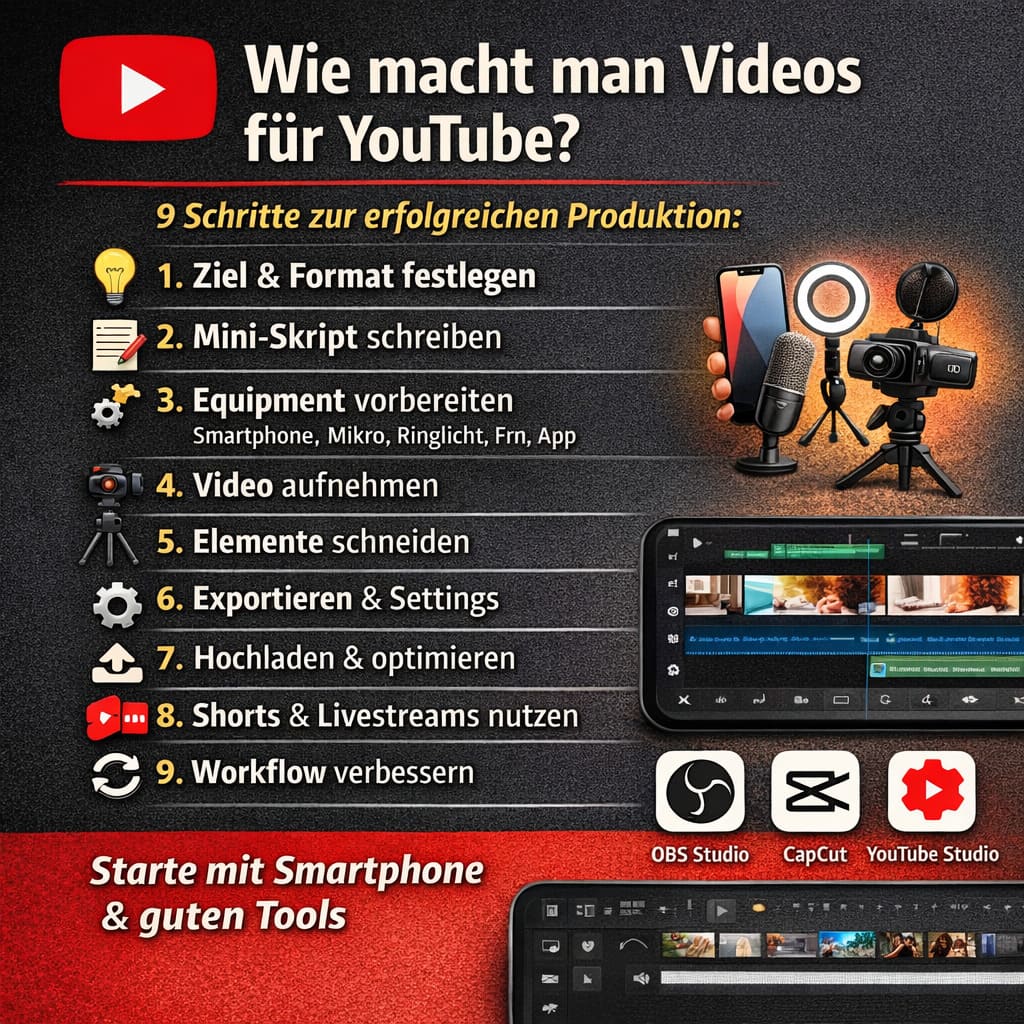
- 1) Set goal & format (the foundation)
- 2) Turning an idea into a mini-script
- 3) Equipment: As little as necessary
- 4) Recording: Clear images, clear sound
- 5) Cut: Keep it simple - get it done
- 6) Export & technical settings (no guesswork)
- 7) Upload, title, description, thumbnails
- 8) Shorts & livestreams - clever additions
- 9) Workflow that makes you consistent
- Practical example: From cell phone tutorial to finished video
- FAQ - frequently asked questions about „how to make videos for youtube“
- Summary (for the snippet)
You ask yourself: „how to make videos for youtube“ - without expensive equipment and complicated software? In this guide, I'll show you in simple steps how to go from idea to upload. You'll get clear processes, tool tips and setting basics to make sure your first videos are a success.
1) Set goal & format (the foundation)
Before you record anything, clarify three points:
- Target: inform, entertain, test, document?
- Target group: Who are you addressing (age, interests, problems)?
- Format: Talking-Head, Tutorial/Screenrecording, Vlog, Review, Shorts, Livestream.
Pro Tip: Start slim. A 5-8 minute tutorial with a clear solution (e.g. „How to set up X in 5 minutes“) often brings faster results than a 20-minute video.
2) Turning an idea into a mini-script
A good video sounds spontaneous - but it rarely is. Use a Key point script:
- Hook (0-10 s): Problem/promise („How to edit videos in 5 minutes“).
- Brief overview (10-20 s): What's coming soon?
- Core part: Maximum 3-5 steps with clear, short sentences.
- Call-to-action: Like/comment/forward.
- Outro: A short conclusion, not a long farewell.
Tip: Don't read - just mark keywords. That way you stay natural.
3) Equipment: As little as necessary
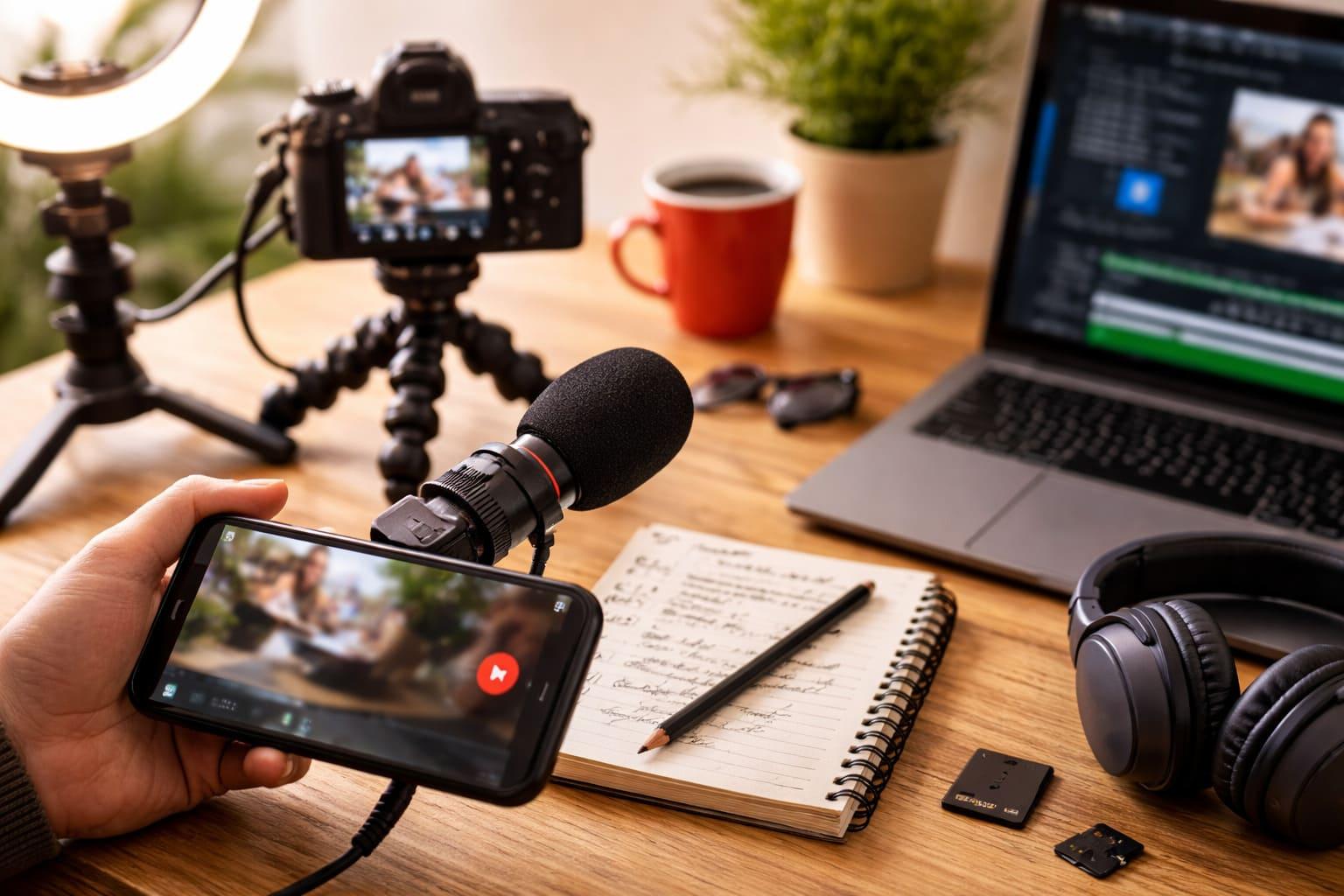
You need not a professional camera. Enough for the start:
- Smartphone (1080p or 4K).
- MicroLapel mic (lavalier) or USB mic for clear sound.
- LightWindow light + ring light/softbox.
- Tripod: ensures a calm image.
- Screen capture (for tutorials): OBS Studio, Xbox Game Bar (Windows) or QuickTime (Mac).
Rule of thumb: Sound > Picture. A medium picture with good sound is better than 4K with reverb.
4) Recording: Clear images, clear sound
- Location: Quiet room, little reverberation (carpet, curtains).
- Camera at eye level, looking into the lens.
- Light at an angle from the front (approx. 45°), no hard backlighting.
- Sound check: 5-second test recording.
Settings (Start setup):
- 1080p (1920×1080), 25-30 fps for Talking-Head/How-to.
- 4K optional if you want to crop a lot.
- ISO as low as possible, shutter speed approx. 1/50-1/60 at 25-30 fps.
5) Cut: Keep it simple - get it done
Free, good tools:
- DaVinci Resolve (Win/Mac): powerful & free.
- CapCut (desktop/mobile): quick & easy.
- iMovie (Mac/iOS): perfectly ok for basics.
Pruning checklist:
- Hook leave it up front, no long intro graphics.
- Erms and shorten breaks.
- Text overlays for steps/shortcuts.
- B-Roll (screen, product, close-up) over Jump Cuts.
- Musicquiet and license-safe.
- Chapter marks (timestamps) - more helpful for viewers.
6) Export & technical settings (no guesswork)
For stress-free uploading, YouTube has clear recommendations on Container, Codec, Bitrate & Audio. Summary for H.264 to MP4 (good quality, compatible):
- Container: MP4
- Codec: H.264 (video) + AAC (audio)
- Frame rate: Retain native (e.g. 25/30 fps)
- Audio: AAC, 48 kHz, 128-384 kbit/s
- Bit rate (standard values): 8-12 Mbps (1080p), 35-45 Mbps (4K)
The official „Recommended upload encoding settings“ can be found here - there are details on formats, frame rates, bit rates and audio (very useful if you want to fine-tune).
7) Upload, title, description, thumbnails
Upload you do in YouTube Studio → Create → Upload video. This is where you add the title, description, thumbnail, chapter, tags, visibility, playlists and subtitles if required. YouTube's official step-by-step guide explains the process very clearly.
SEO basics:
- Title: problem/solution-oriented („How to make videos for YouTube - 9 steps“).
- Description: 2-3 sentences + chapter timestamps + useful links.
- Keywords: of course in the title/first lines, do not spam.
- Thumbnail: large font, clear contrasts, 1280×720 px, max. 2-3 words.
8) Shorts & livestreams - clever additions
- Shortsvertical (9:16), <60 seconds. Perfect for quick tips/teasers.
- LivestreamsQ&A, product demo, co-streaming. Plan process & moderation (chat rules, prepare links).
- Community tabSurveys/posts to get feedback on ideas.
9) Workflow that makes you consistent
- BatchingShoot 2-3 videos in one day, edit later.
- Templates in the cut (intro/outro, chapter graphics).
- Editorial plan1 topic = 1 video, one time each week on Monday.
- Measure & improveAnalyze click-through rate (CTR), average playback time, retention peaks/lows.
Mini interim conclusion: A clear process saves time. When scripting, recording and editing are standardized, you grow faster - and your videos get better every time.
Practical example: From cell phone tutorial to finished video
Scenario: You want to explain how to set up a free app.
- Hook: „You'll be ready to go in 5 minutes - without any prior knowledge.“
- Step sequence: Download → First setting → Most important button → Common errors → Test.
- B-Roll: Screen recording of the app (OBS/smartphone recorder).
- Cut: Each action as a short sequence, text label top left, zoom to important buttons.
- Export: 1080p, H.264, approx. 10 Mbit/s, AAC 48 kHz. (For details see YouTube recommendations.)
- Upload: Title „Setting up App X - explained in 5 minutes“, chapter & thumbnail with a capital „5 min“. Check the instructions in the help article if you are unsure.
FAQ - frequently asked questions about „how to make videos for youtube“
How long should YouTube videos be?
As long as necessary, as short as possible. For tutorials 5-10 minutes often ideal. If the topic is larger: use the chapter.
Which camera do I need?
Your Smartphone is enough. More important are Microphone and Light. Later you can switch to a system camera.
Which export settings are „secure“?
H.264/MP4, 1080p, 25/30 fps, AAC 48 kHz - bitrate approx. 8-12 Mbit/s. For 4K higher bitrate. Official recommendations: see YouTube Help.
How do I upload a video correctly?
About YouTube StudioSelect file, set details (title, description, thumbnail, visibility). Guide here.
Do I need GEMA/music licenses?
Use royalty-free music or clarify rights. Otherwise there is a risk of claims/strikes. (When uploading, the „Checks“ function in YouTube Studio helps you to recognize copyright problems).
Summary (for the snippet)
How do you make videos for YouTube? Define goal & format, write a short script, record with smartphone + good mic, cut compactly (DaVinci/CapCut), export H.264/MP4 in 1080p, load via YouTube Studio and optimize the title, description, thumbnail and chapter. Official upload steps and recommended settings can be found in the YouTube help pages.
Bigfollow
Bigfollow has been the leading Swiss provider for social media growth, follower packages, likes and engagement boosts since 2022.